
Why this problem happens and why it’s so confusing
In 2023, I remember getting this issue on my Google Ads account. I tried many different fixes, but none of them worked at the beginning. However, I’m quite sure that those attempts eventually helped me overcome the error. Here, I’ll share what I learned with you. I’ll also recommend a freelancer who can fix this issue, in case you’re unable to resolve it on your own.
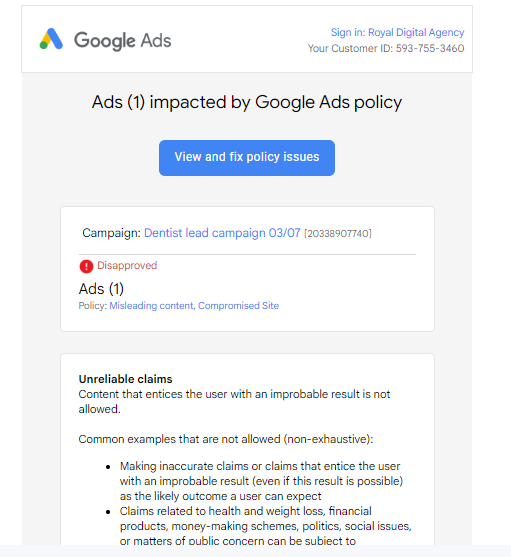
A Google Ads compromised site disapproval usually means Google detected something on your website that shouldn’t be there , even if you never put it there yourself.
Most of the time, the root reason is:
- Hidden malicious code injected through an outdated plugin, theme, or weak password
- Files modified silently without breaking the site’s visible design
- Redirects or scripts that only trigger for Google bots, not for you
A very common misconception is:
“My site looks fine, so it can’t be hacked.”
Unfortunately, many compromises are invisible to normal visitors. Google scans deeper than what you see in your browser, which is why ads get disapproved even when everything “looks okay.”
Step-by-step solution
Step 1: Confirm what Google is actually flagging
What to do
Open Google Ads → Policy Manager → View the disapproval details.
Also check Google Search Console → Security Issues (if available).
Why this matters
“Compromised site,” “malicious software,” and “hacked content” are often used together, but they can point to different problems. You need to know what Google detected, not guess.
What usually goes wrong
Most of People rush to reinstall themes or delete random files without understanding the trigger. That often removes symptoms, not the cause. So you need to be more aware when reinstalling wordpress or themes related to your website.
Step 2: Scan the site beyond surface-level tools
What to do
- Run a full server-side malware scan (not just a browser scanner)
- Check core files, plugins, and uploads folders
- Look for unfamiliar PHP files, strange file names, or recently modified files.
If you can’t understand these things, use AI like ChatGPT, Gemini or Grok as the assistant, update the chat by sharing screenshots, and ask to tell the next steps. Your work will be much easier.
Why this matters
Many compromised site issues live in places most owners never check. Browser-based scanners miss hidden backdoors that Google can still detect.
What usually goes wrong
Relying only on free online scanners and assuming “no results” means the site is clean. Still no such a tool can give a complete scan.specially with free versions.
Step 3: Replace infected files, don’t patch them
What to do after doing the above steps
- Reinstall clean versions of WordPress core, themes, and plugins
- Delete anything unused
- Restore files only from backups created before the compromise
Why this matters
Malware often reinfects the site through modified core files or old plugins. Cleaning a single file doesn’t remove the entry point.
What usually goes wrong
Editing suspicious code manually without understanding it, leaving hidden loaders behind.
Step 4: Lock down access points
What to do
- Change all passwords (hosting, FTP, database, admin users)
- Remove unused admin accounts
- Update everything to the latest stable versions
Why this matters
If the attacker’s access remains, the site will be reinfected — sometimes within hours.
What usually goes wrong
Only changing the WordPress admin password and ignoring hosting or database credentials.
Step 5: Request a review only after you’re confident
What to do
Once the site is clean and secured, submit a review request in Google Ads.
Be honest and brief when describing what you fixed.
Why this matters
Google rechecks the site thoroughly. If anything suspicious remains, the disapproval will stay or return.
What usually goes wrong
Requesting a review too early, getting rejected again, and damaging trust signals further.
Common mistakes that cause repeated disapprovals
- “I fixed it once, so it’s done”
Hidden backdoors bring the malware back. - Ignoring hosting-level security
Shared hosting vulnerabilities are a frequent reinfection source. - Restoring from a recent backup
Many backups already contain the infection. - Leaving unused plugins installed
Even inactive plugins can be exploited.
A real-world experience note
I’ve seen website owners spend days rewriting content and redesigning pages, convinced Google flagged their text or ads.
The real issue turned out to be a single hidden PHP file added months earlier through an outdated plugin. The site looked perfect — but Google’s crawler saw something entirely different.
Once the root access point was closed, the ads were approved without changing any content at all.
When DIY may not be enough
If:
- The site keeps getting reinfected
- You can’t identify where the malware is coming from
- Google Ads reviews keep failing despite “clean” scans
Then the issue is likely deeper than visible files — often at the server or permission level.
At that point, expert cleanup isn’t about convenience. It’s about stopping a loop that can quietly damage your ads account and domain reputation over time.
