

I’ve seen “Destination not working” pop up even when the landing page looks fine to the site owner—because Google is judging it the way its systems and crawlers experience it (mobile vs desktop, HTTPS vs non-HTTPS, redirects, response codes, policy flags, etc.). The fastest wins come from checking Google’s own diagnostics first, then fixing the exact thing it’s complaining about.
- Confirm where the issue is happening (campaign/ad group context)
- Open Google Ads and make sure you’re in the correct account
- Note the Campaign and Ad group where ads are Disapproved or Limited
Why this matters: destination issues are often tied to one specific URL or one specific set of ads, not your whole account.
- Use Google’s built-in diagnostics first (this saves hours)
- In Google Ads, click the Tools & Settings menu (the wrench icon at the top)
- Open Troubleshooting
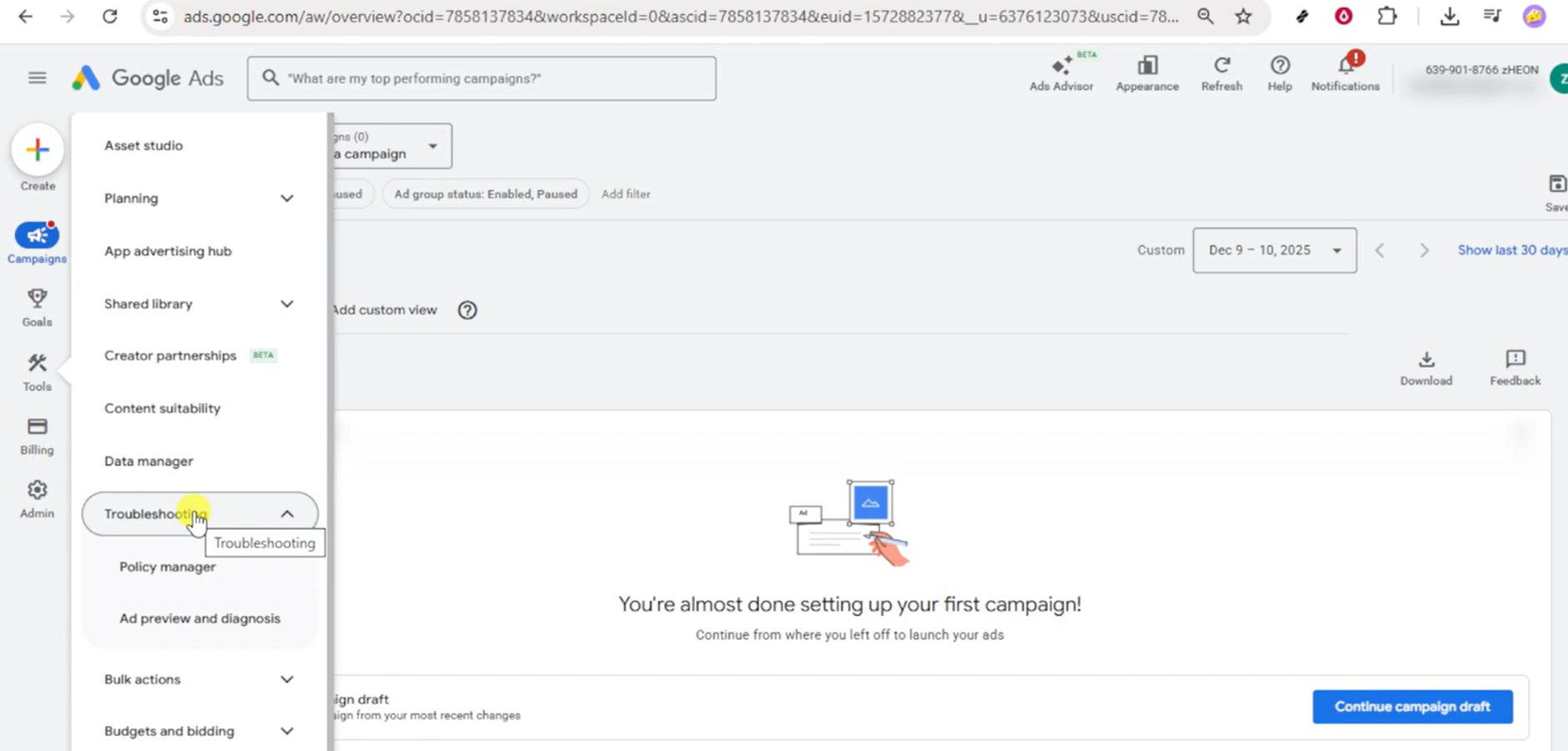
- Review the alerts related to destination issues (examples you might see):
- Landing page can’t be crawled
- Slow or failing loads
- Too many redirects
- Final URL doesn’t match destination
- Click into the details panel to see which ads/assets/landing pages are impacted and whether it’s one URL or many
Why this matters: it shows the “symptoms” Google is detecting, and often points directly to what’s broken.
- Check Policy Manager to see the actual policy reason (not just the generic label)
- Go back to Tools & Settings (wrench)
- Open Policy manager
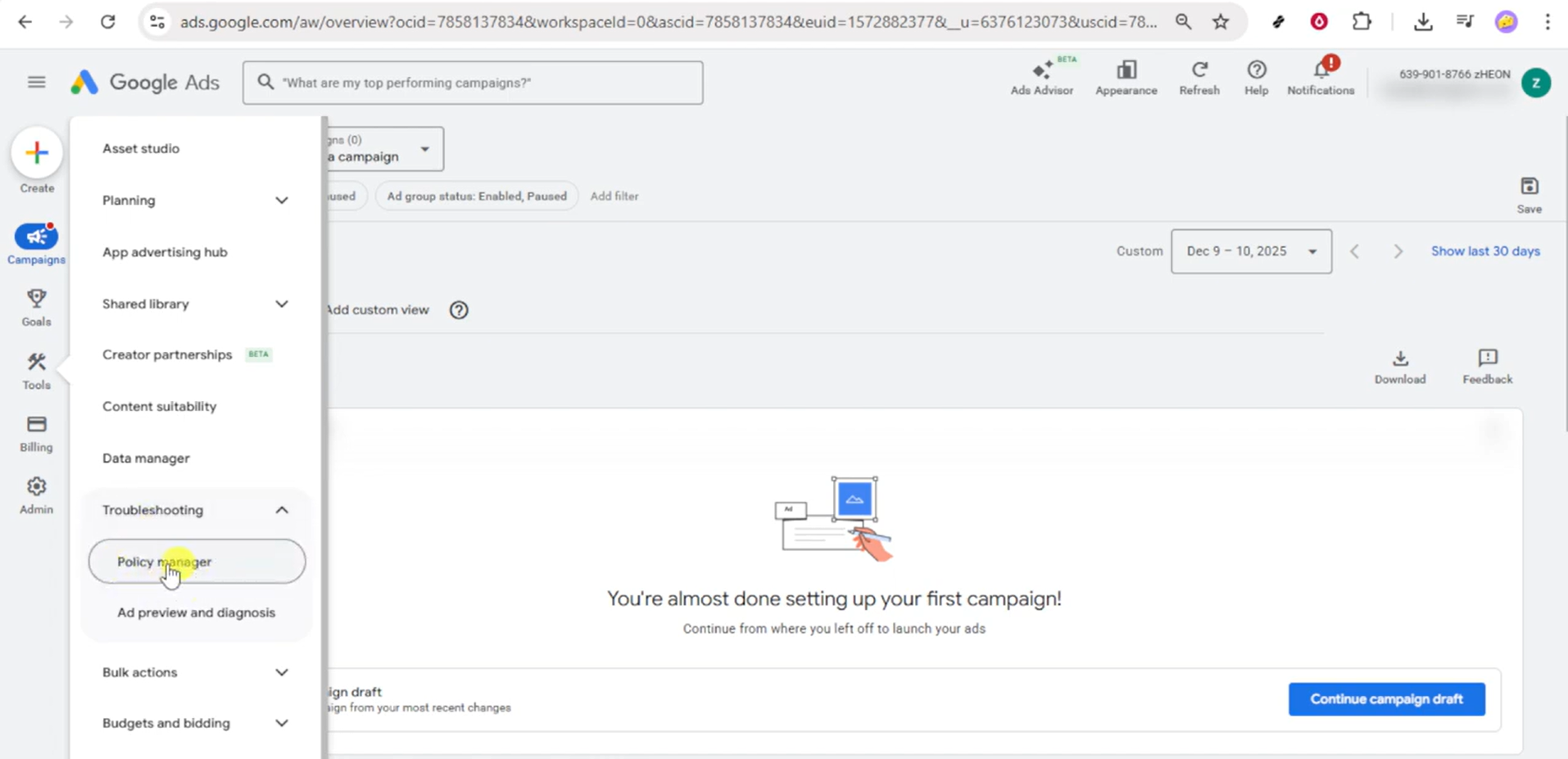
- Look for policy reasons tied to the destination issue, such as:
- Site unavailable
- Destination mismatch
- Malicious or unwanted software
- Misleading content
- Unsupported language or country restrictions
- Review any timestamps, how many ads are impacted, and click the provided references
Why this matters: “Destination not working” can sometimes be a technical error—or a policy-related destination block. Policy Manager tells you which.
- Match what Google is checking: response code, HTTPS, redirects, and device behavior
From what you see in Troubleshooting/Policy Manager, focus on these common failure points:
- Response codes (403/404/500)
- If the page returns errors sometimes (especially to bots), fix the page/hosting/security rules so it returns 200 OK consistently.
- HTTPS / SSL misconfiguration
- If HTTP works but HTTPS fails (or vice versa), fix SSL so the secure version loads cleanly.
- Redirect loops / too many redirects
- Simplify redirects so the final URL resolves quickly and consistently.
- Desktop works, mobile fails (or opposite)
- Fix device-specific blocks, mobile misconfigurations, or scripts that fail on mobile.
Why this matters: Google is explicitly looking for landing pages that load correctly across common devices/browsers and don’t “break” mid-journey.
- Verify the Final URL truly matches where users end up (especially with tracking)
- Go to Ads & assets → Ads
- Edit the affected ad and check the Final URL
- If you use tracking parameters or third‑party redirect/tracking tools, make sure:
- They resolve quickly
- They resolve consistently on mobile and desktop
- They don’t send users to a different domain unexpectedly
Why this matters: slow or inconsistent tracking redirects are a very common reason Google says the destination is “not working” or “mismatched.”
- Fix the site/ad settings, then re-check the same diagnostic areas
- Make the required changes on your website or in the ad URL settings
- Go back to Tools & Settings → Troubleshooting and Policy manager to confirm the issue is clearing
Why this matters: those two areas are your “before/after” proof that Google is now seeing the destination correctly.
- Request review if the ad stays disapproved after fixes
- Return to the ad status (under Ads & assets) and use Appeal / Request review if available
Why this matters: sometimes Google won’t re-evaluate immediately until a review is triggered.
🎯 Summary
👉 Use Tools & Settings (wrench) → Troubleshooting to see the exact destination symptoms (crawl issues, redirects, slow loads, mismatch).
👉 Use Tools & Settings → Policy manager to confirm the specific policy reason and impacted ads.
👉 Fix what Google is detecting: response codes, SSL/HTTPS, redirect loops, mobile/desktop differences, and tracking redirects.
👉 Re-check the same sections and request a review if needed.
When everything is aligned correctly, approval usually follows.
Thanks for reading—comment what Troubleshooting/Policy Manager says (even a short screenshot text) and I’ll tell you which fix usually clears it fastest. If you’ve found a better workaround, share it so others can benefit too.
