
Hello! I’m Mayantha, a developer and SEO expert with nearly 5 years of hands-on experience working with websites and Google Ads.
Today, I’m answering a very common and frustrating question:
“Why are my ads disapproved for the Google Ads unsupported language error?”
I have written this guide is based on official explanations from Google Ads, combined with real fixes that advertisers have successfully used. Everything here comes from practical troubleshooting — not theory.
Many advertisers assume this error means something is wrong with their content. In reality, this is usually a configuration mistake, not a policy violation.
The google ads disapproved unsupported language issue happens when:
- The campaign language does not match the ad copy
- The ad language does not match the landing page
- Or an unsupported / irrelevant language is selected in campaign settings
Google Ads does not auto-translate ads. It expects consistency. If Google sees a mismatch between campaign language, ad text, and landing page language, it pauses or disapproves the ads to protect user experience.
This often happens accidentally when campaigns are duplicated, regions are expanded, or default language settings are left unchanged.
Step 1: Identify the exact campaign with the language issue
What to do (Google Ads Dashboard):
- Log in to your Google Ads account
- Click Campaigns in the left sidebar
- Click Campaigns again to view all campaigns
- Find the campaign marked as Disapproved or Limited
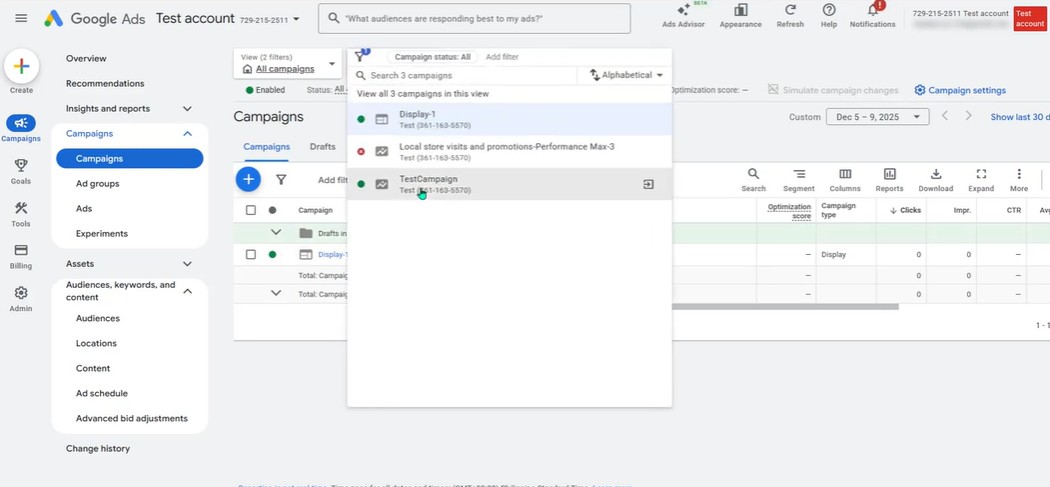
Language settings are applied per campaign, not per account. Fixing the wrong campaign will not resolve the issue. So select the correct campaign.
What goes wrong if skipped:
- You fix a different campaign
- The disapproved campaign remains unchanged
- The error keeps returning
Explanation:
This issue is very common in accounts with multiple campaigns or copied campaign structures.
Step 2: Open campaign settings correctly
What to do (Google Ads Dashboard):
- Hover over the affected campaign
- Click the gear icon next to it
- OR Click the campaign name → go to Settings
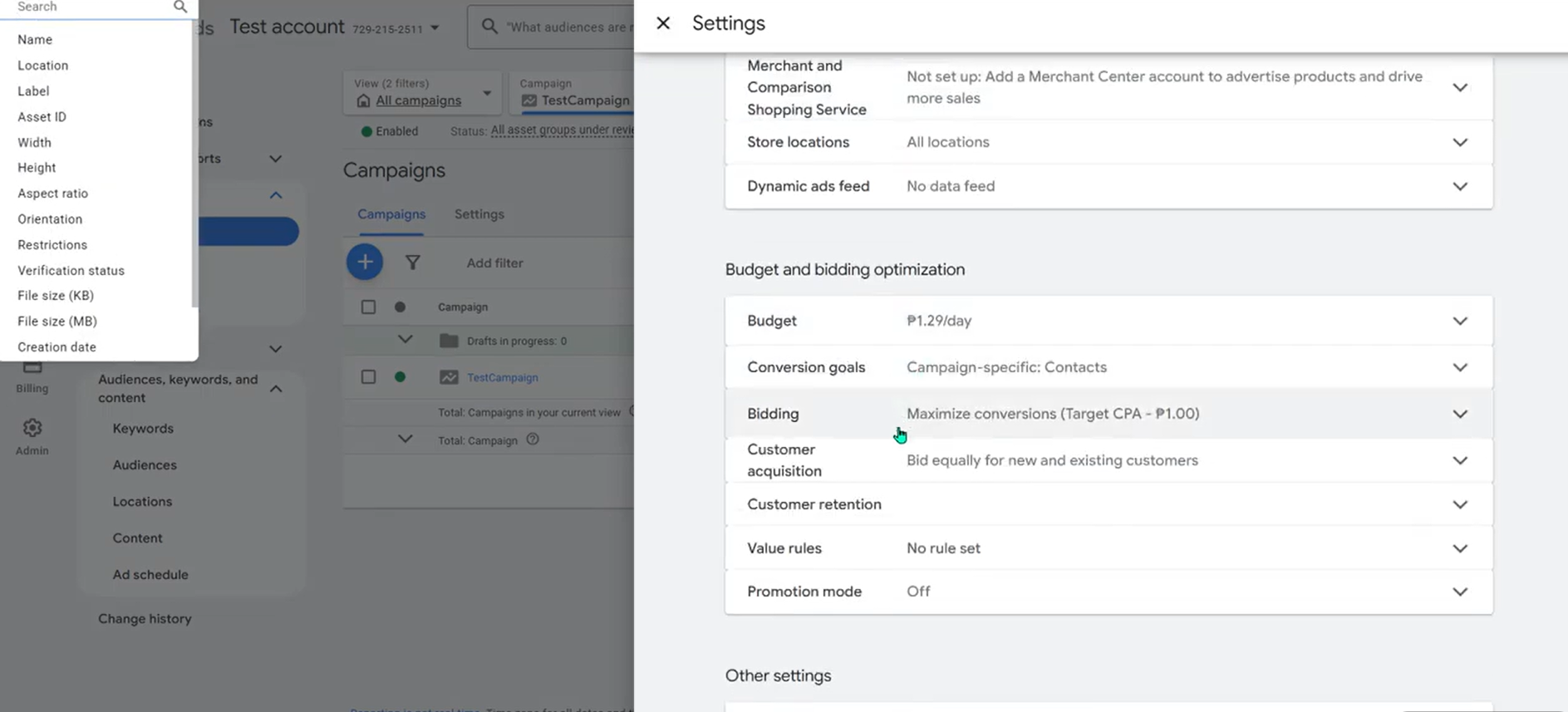
This matters because Language targeting controls are only available inside campaign settings.
If you skipped this step:
- Editing ads instead of campaign settings
- Assuming ad-level changes will fix the issue
Step 3: Edit the language targeting section
What to do (Google Ads Dashboard):
- Scroll down to Other settings
- Find Languages
- Click Edit
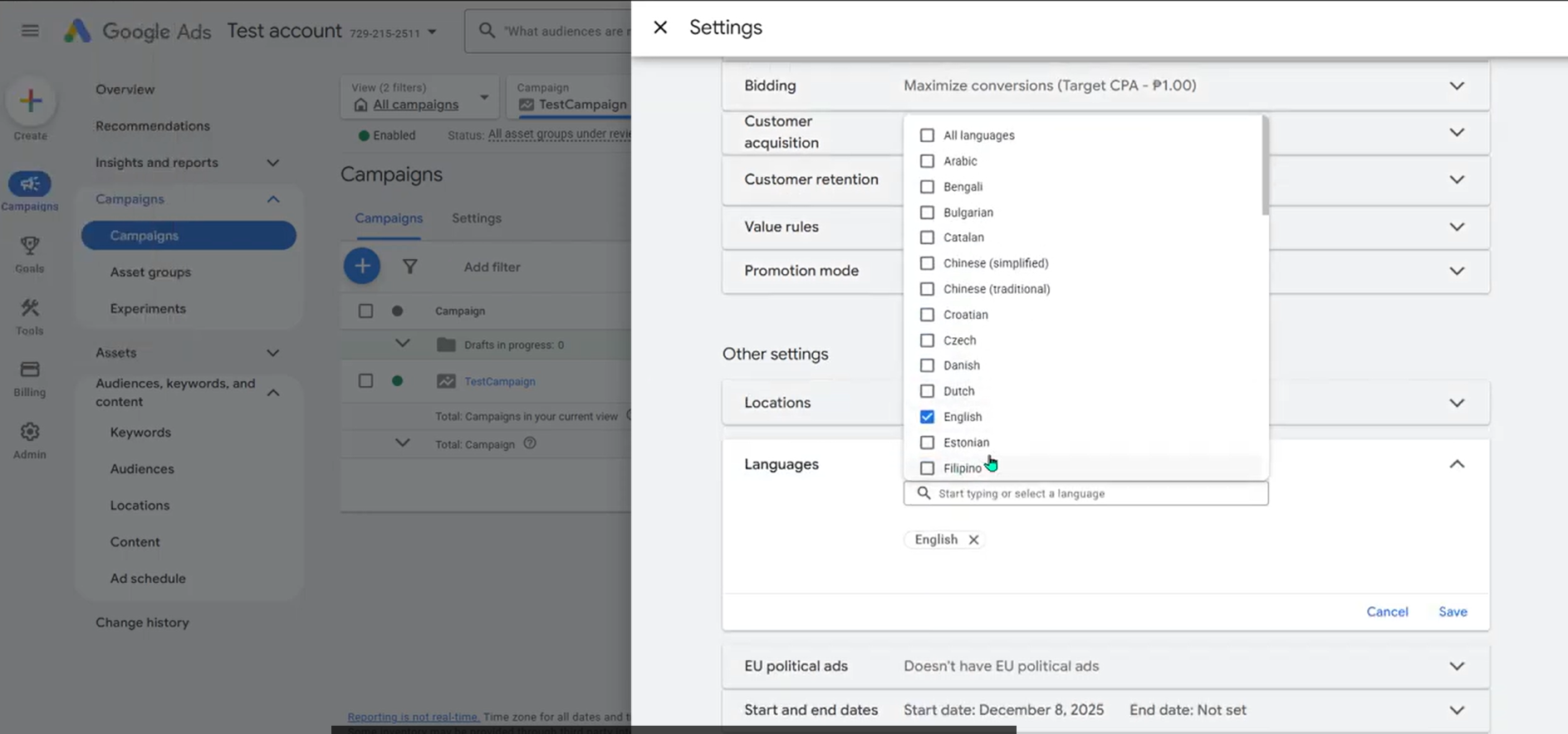
You will now see a list of selected languages.
Remove:
- Unsupported languages
- Languages not used by your audience
- Languages that do not match your ad copy
Keep only the language(s) your customers actually use. Put the tick marks to the languages you only need to keep. Then Click save.
You can repeat this process for all the ad campaigns in your account.
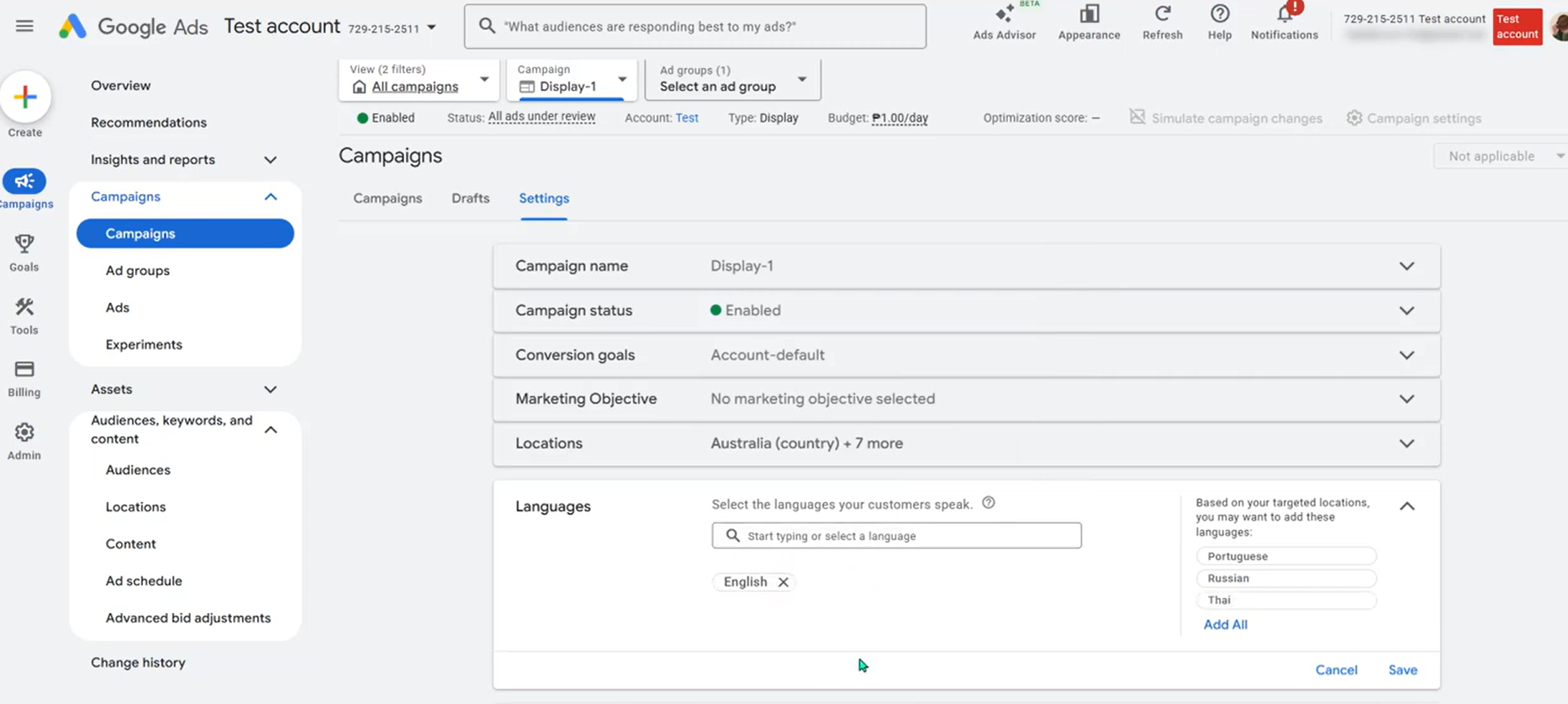
This matters because Google uses this setting to decide who is eligible to see your ads.
If you skip the above steps,
- Google cannot match ads to users
- Ads remain disapproved or limited
So Selecting extra or incorrect languages often causes this issue, especially when campaigns were duplicated from older setups.
Step 4: Ensure ad copy language matches campaign language
Review all headlines and descriptions and confirm whether they are written in the same language selected in campaign settings. Google checks whether the ad language aligns with campaign targeting.
What goes wrong if skipped:
- English campaign targeting with non-English ads
- Mixed-language ad variations
Step 5: Ensure landing page language matches ads
Open the landing page used in the ad.
Check:
- Main content language
- Navigation text
- Buttons and forms
Everything should match the campaign language. This step is just for checking everything.
Step 6: Allow time for processing
- You have already saved all the selected languages.
- Now you have to Wait for Google Ads to reprocess the campaign
Language updates are not always instant. So don’t request review too early. Just give it atleast few days. Google usually updates campaign status after a short processing period.
Step 7: Review other campaigns for the same issue
- Check other active and paused campaigns
- Ensure language settings are consistent
- Especially review duplicated campaigns
You need to do this because inconsistent language settings across campaigns often cause repeated disapprovals. So Fixing all campaigns at once prevents future policy flags.
Common mistakes people make
- Selecting multiple unnecessary languages
- Using ad copy in a different language than the campaign
- Forgetting to check landing page language
- Assuming Google translates ads automatically
- Fixing one campaign but ignoring duplicates
Fixing all above mention mistakes will help you to get the approval for sure.
Experience note
When comparing with other adsense errors, this error is one of the easiest Google Ads disapprovals to fix. Once the campaign language, ad text, and landing page are aligned, ads are often approved without manual appeals. The mistake usually isn’t obvious because the ads look fine — but the configuration tells a different story to Google.
When DIY may not be enough
You may need a deeper review if:
- You run multilingual sites
- Landing pages auto-switch language
- Multiple regions share one campaign
- Disapprovals return after fixes
In these cases, campaign structure and language strategy must be reviewed together to avoid repeated policy issues. In that case I reccomend you to contact an Experienced freelancer who can solve this error.
🎯 Summary
To fix google ads disapproved unsupported language:
👉 Edit campaign language settings
👉 Remove unsupported or irrelevant languages
👉 Match ad copy language
👉 Match landing page language
👉 Save changes and wait for processing
Do this correctly → ads usually become eligible again without further issues ✅ Hope you found the solution to the error. Thank you so much for reading. Don’t forget to leave us a comment if you found this fix useful. It will be a lot to us.
