

Hello, I’m Mayantha. I’ve seen the ads.txt not found warning scare people way more than it should. Most of the time, nothing is “broken” on your site. Only Google just can’t see one specific file in the one specific place it checks (and it’s very picky about that).
The goal is simple: make sure ads.txt exists and is publicly accessible at:
https://yourdomain.com/ads.txt
Step 1: Get your official ads.txt snippet from AdSense
- Log in to Google AdSense
- Click Sites
- Click your website/domain
- Look for ads.txt snippet (sometimes inside a prompt like Fix ads.txt or Verify site ownership)
- Click Copy on the snippet
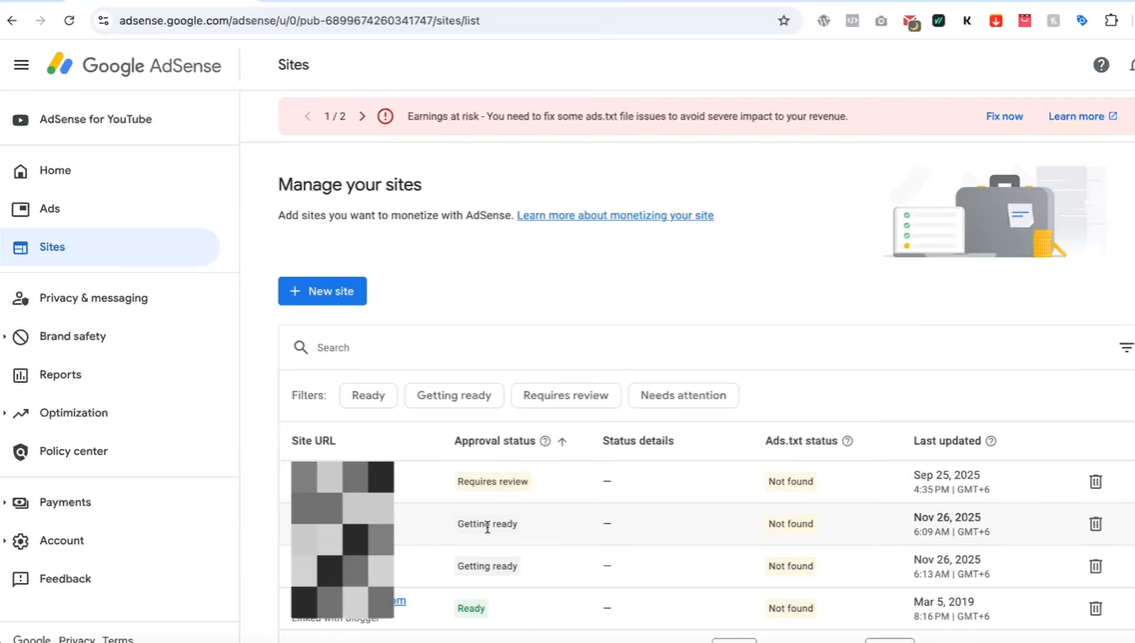
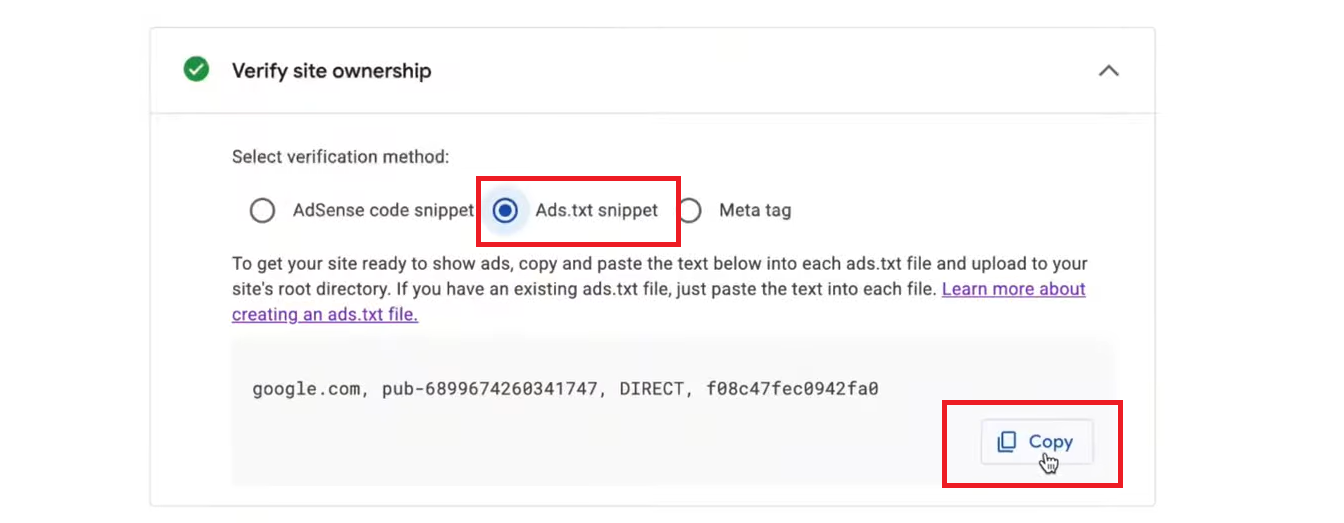
That snippet includes your publisher details. If you paste the wrong thing (or someone else’s), AdSense won’t verify properly.
Step 2: Create the ads.txt file in WordPress (easy method)
If you don’t have access to cPanel or don’t want to touch hosting files, this method works well.
- Go to your WordPress dashboard → Plugins → Add New
- Search for FileStar (or another reputable “File Manager” plugin)
- Click Install Now → Activate
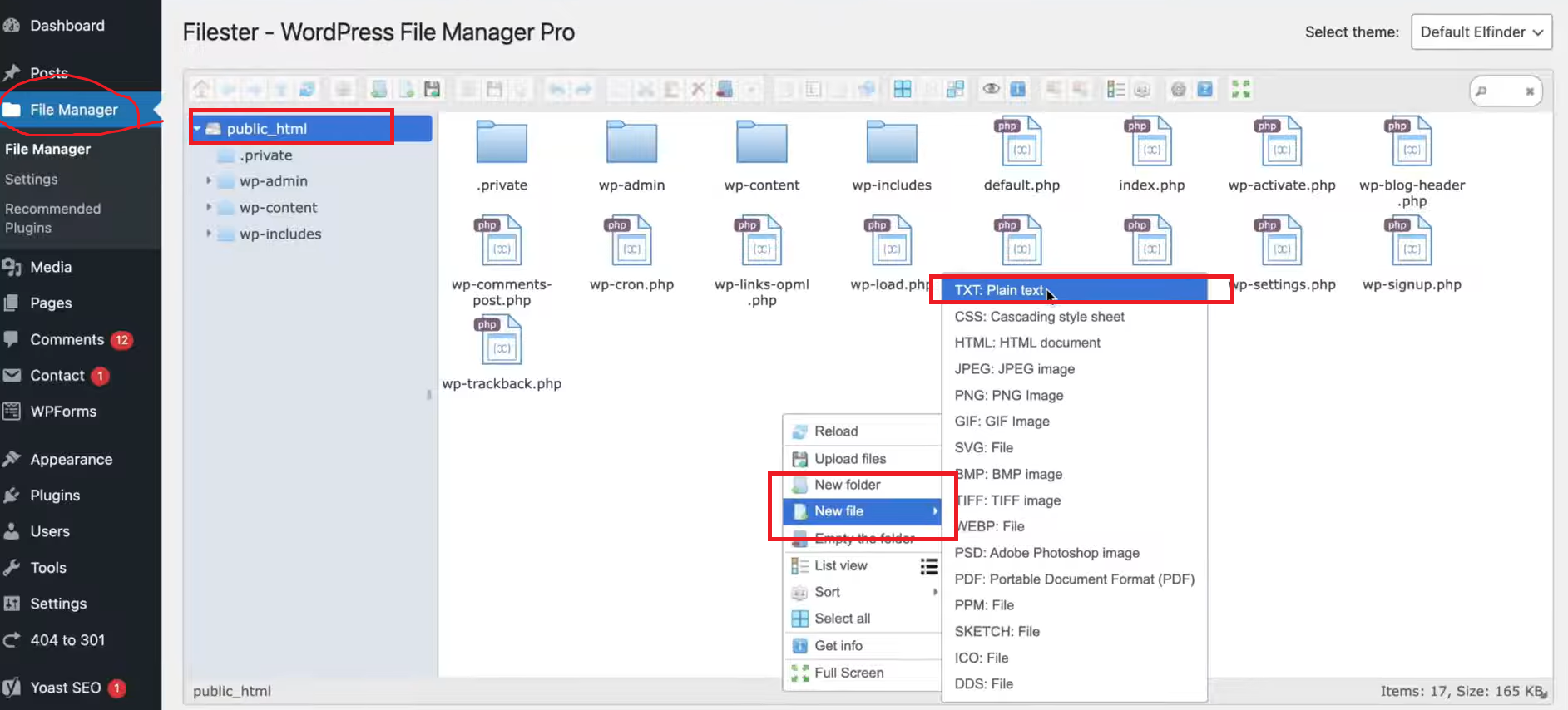
- In the left menu, open File Manager

This need to done because You need a way to create a file in your website’s root folder, and a file manager plugin gives you that without technical steps.
Step 3: Create the file with the exact name
- In File Manager, create a New File
- Choose Plain Text
- Name it exactly: ads.txt
- all lowercase
- must include
.txt
- Press Enter to create it
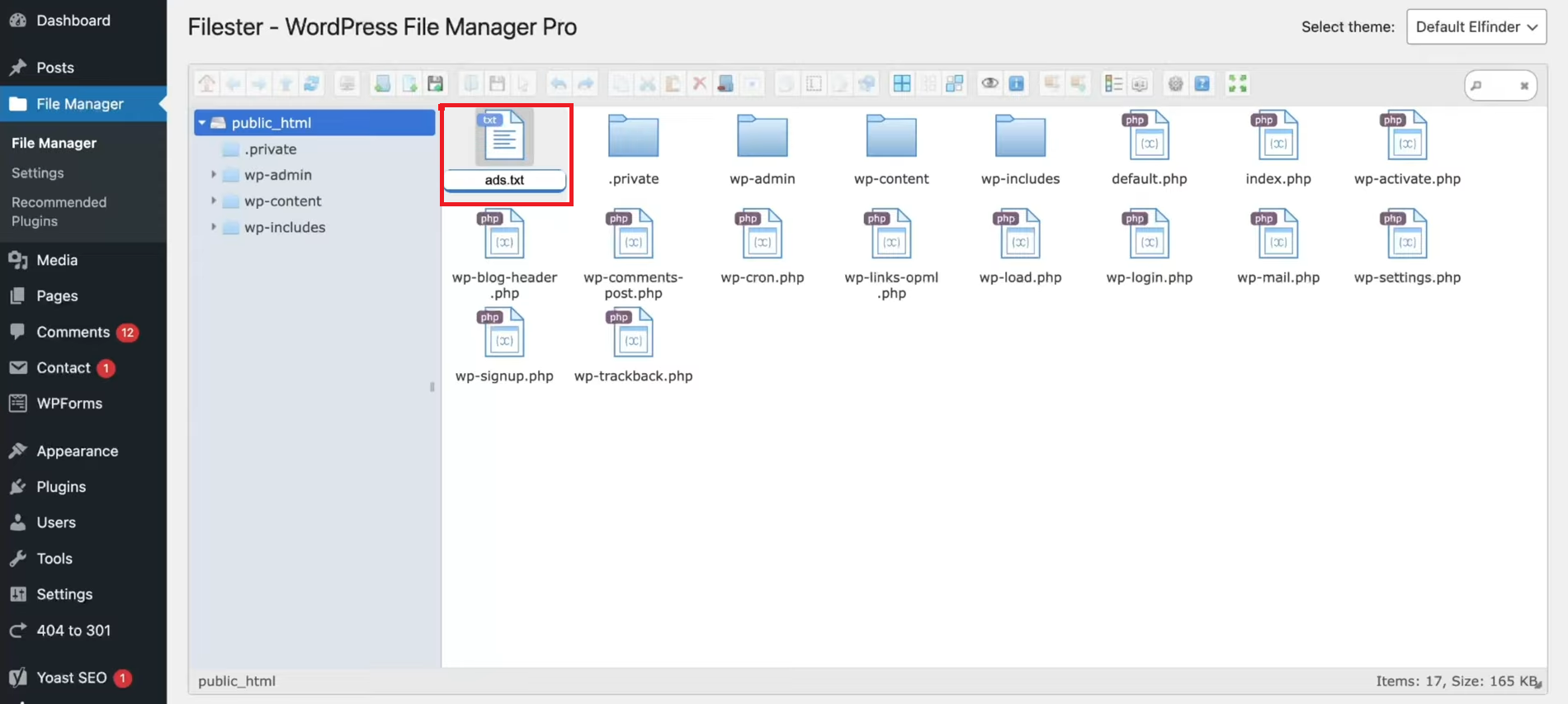
Google only checks this exact filename at the root. Ads.txt, ads.TXT, or adstxt can fail depending on the server.
Step 4: Paste the snippet and save
- Double-click ads.txt to open it
- Choose an editor like Text Area
- Paste the snippet you copied from AdSense
- Click Save / Save & Close
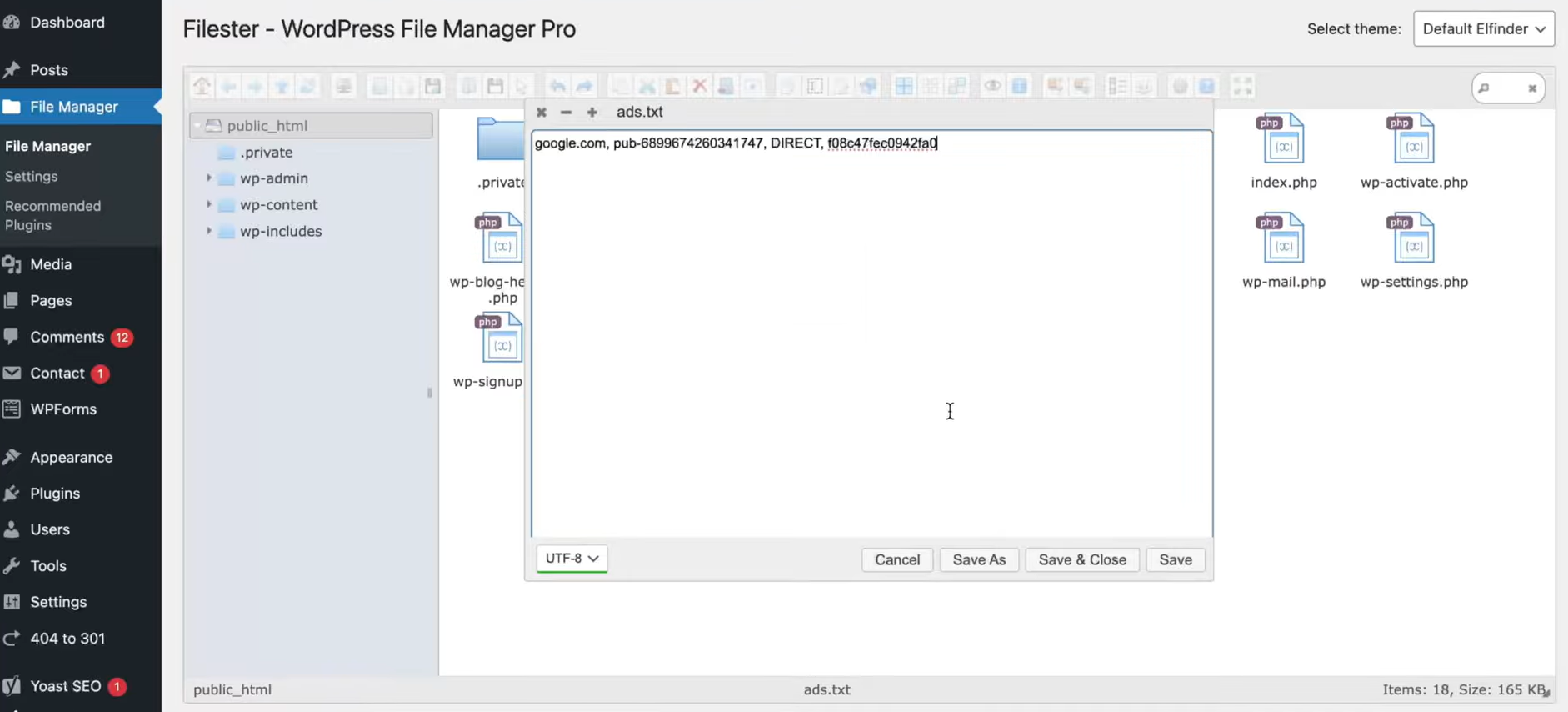
If you forget to save or paste into the wrong file, AdSense will still show “not found.”
Step 5: Verify it works (don’t skip this)
Open a new browser tab and type:
https://yourdomain.com/ads.txt
You should see your snippet displayed as plain text (not a download, not a 404 page).

If you see problems, here’s what they usually mean:
- 404 Not Found: file isn’t in the right place (not in the root), or caching/CDN is serving an old version
- 403 Forbidden: security plugin, server rules, or firewall is blocking access
- Redirects to another domain or a weird URL: your site has www/non-www or http/https redirects, and the file must still resolve correctly
- Shows a blank page: file exists, but content didn’t save (or saved in the wrong directory)
Note: If you can’t load it from a browser, Google’s crawler can’t load it either.
Step 6: Give AdSense time to crawl it
Even after you fix it, AdSense doesn’t always update instantly. It can take a few hours up to a few days for Google’s crawler to revisit and clear the warning.
If you want to be extra safe, keep the site online, and avoid changing themes/redirect settings while waiting.
Step 7: Optional cleanup (recommended)
Once the warning is gone and ads are serving normally:
- Go to WordPress → Plugins
- Deactivate the file manager plugin
- Delete it if you don’t need it anymore
Why this matters: File manager plugins are powerful. If you don’t need it long-term, removing it reduces risk.
🎯 Summary
👉 Copy the official ads.txt snippet from AdSense (Sites → your domain → ads.txt snippet).
👉 Create ads.txt in your site root via a WordPress file manager plugin and paste the snippet.
👉 Confirm it loads at https://yourdomain.com/ads.txt with no 404/403 and then wait for Google to re-crawl.
When everything is aligned correctly, approval usually follows.
Got more AdSense errors? – Google Ads Issues
Thanks for reading—leave a comment if your ads.txt link shows 404/403 or keeps redirecting. And if you found a cleaner fix that worked better on your setup, share it so others can use it too. Best wishes, and may success always find you!
