
I’ve seen this Google Ads suspicious payment issue more times than I’d like to admit and honestly, the first few times, it made me doubt everything, too. One day, ads are running fine, the next day, Google quietly comes up with a new error. But dont worry in this guide I will guide you with the most possible way to solve this error. In most real cases I’ve worked on, this issue was fixable without starting a new account as long as the steps were followed carefully and in the right order.
Let me walk you through this slowly and clearly, exactly how I guide clients when I’m sitting next to them, screen open.
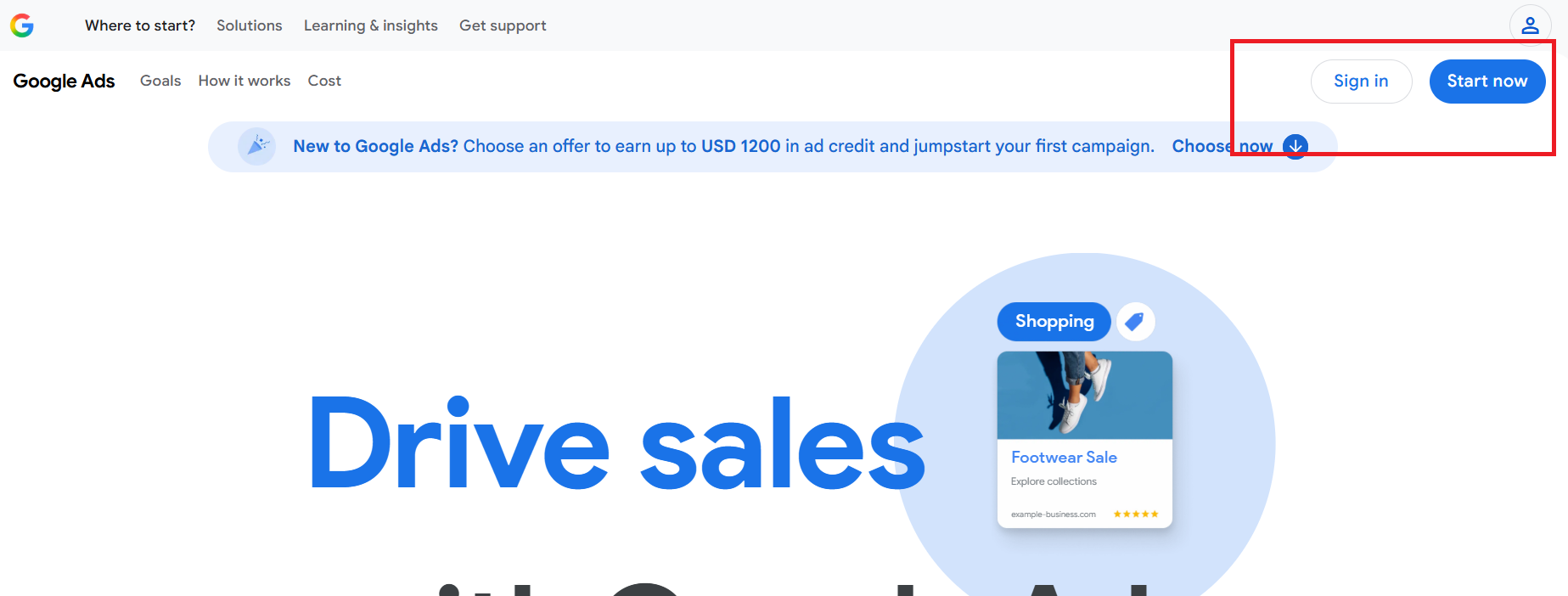
Step 1: Log in to Your Google Ads Account Properly
First things first — don’t jump into random settings. Skip to step 2 if you are already logged in.
- Open your browser
- Type Google Ads into the search bar
- Click the first official result
- Click Sign in
- Log in using the Google account connected to the suspended Ads account
Once logged in, you should land on the Google Ads home dashboard.
If your account is suspended, you’ll usually see a warning banner or notification at the top. Google only allows billing and verification changes from inside the affected account. Fixes done elsewhere won’t count.
Step 2: Go Straight to the Billing Section
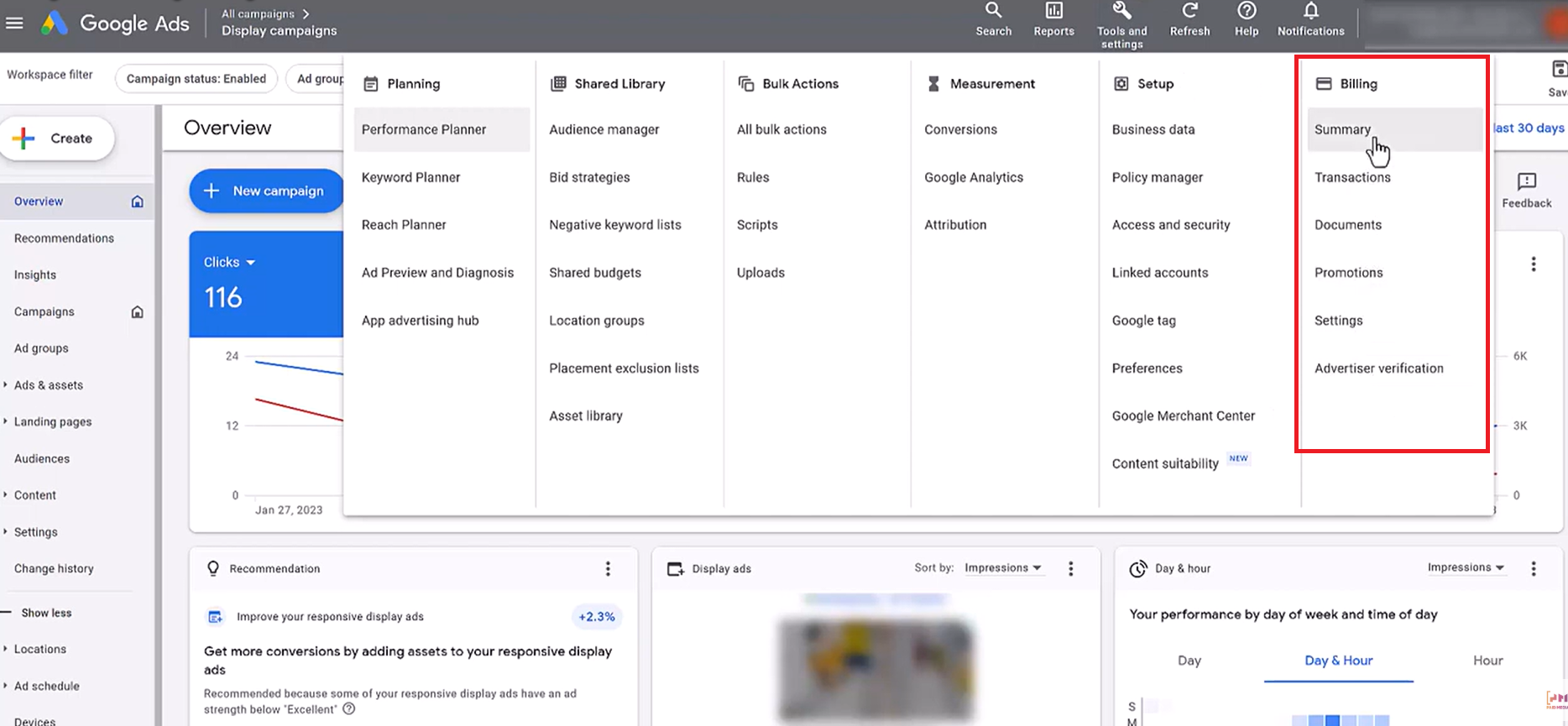
Suspicious payment issues almost always start here.
- Look at the top menu in the dashboard.
-
Click Billing
This opens your account’s financial settings — the area Google watches very closely. Google’s system flags patterns, not intentions. Even innocent billing mistakes can trigger automated suspensions.
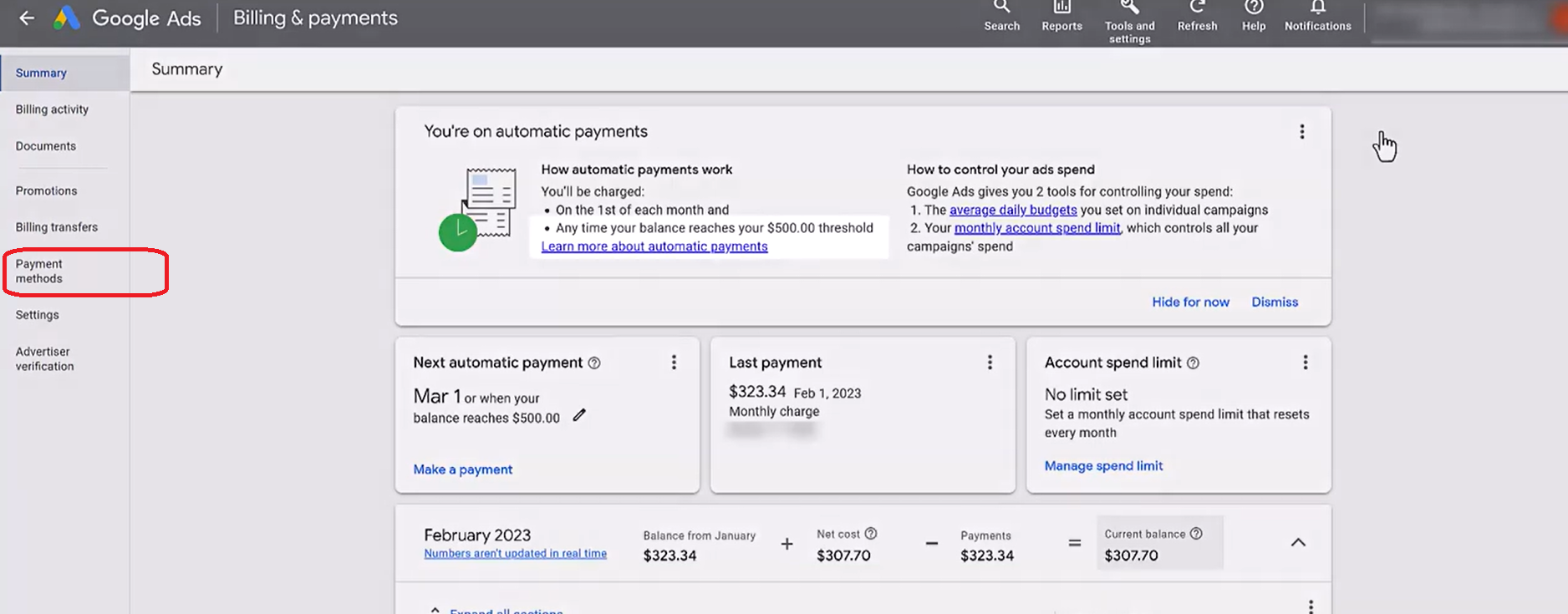
Step 3: Open “Payment Methods”
Now we narrow it down.
- Inside Billing, click Payment methods
- You’ll see all cards or payment options connected to your account
Carefully review each payment method, one by one.
Check for:
- Expired cards
- Old cards you no longer use
- Incorrect cardholder name
- Billing address mismatches
- Cards reused across multiple Google Ads accounts
If you see:
- An expired card → Remove or update it
- Incorrect details → Edit and correct them
- Too many cards → Remove unnecessary ones

And you should remember Google often flags accounts when:
- Payments fail repeatedly
- Cards are shared across many ad accounts
- Billing details don’t match the account location
- Old payment methods remain active
Even if the card used to work, Google may still treat it as risky.
Step 4: Make Sure One Clean, Valid Payment Method Exists
After cleaning up payment methods: Keep one primary, valid card & Make sure it:
- Is active
- Has sufficient balance
- Matches your real billing address
- Belongs to you or your verified business
Remember to Avoid:
- Virtual cards (in many cases)
- Frequently switching cards
- Using someone else’s card without verification
Keep in your mind that Google prefers consistency over speed. Stable billing behavior often resolves the issue automatically after review.
Step 5: Complete Advertiser Verification (Very Important)
This step is commonly skipped — and that’s where many people get stuck.
- From the Google Ads menu, look for Advertiser verification
- Click it
- Follow the instructions carefully
You may be asked to:
- Verify your identity
- Submit business details
- Upload documents
- Answer questions about who you are and how you advertise
Take your time. Don’t rush. Just complete the verification step by step. When suspicious payments are detected, Google wants to confirm who is actually behind the account. So Verification builds trust, and trust is what lifts suspensions.
Step 6: Check Messages & Alerts Regularly
After completing billing cleanup and verification:
- Open the Notifications / Alerts section
- Read every message from Google Ads
Sometimes Google:
- Requests additional info
- Sends status updates
- Starts an automatic re-review
Missing a follow-up request can delay reactivation even if everything else is fixed. So this is a must step to keep updated with Google Ads notifications till you get your account activated again.
Step 7: Be Patient With Google’s Review Cycle
This is the part no one likes. You have to wait till Google reviews the changes. From experience:
- Some accounts recover in 24–72 hours
- Others take several days
- Occasionally, a second review cycle happens
This is normal. Google doesn’t rush payment-related decisions. Google reviews payments the way airport security checks bags slow, silent, and slightly dramatic.
Step 8: Contact Google Ads Support (If Needed)
If:
- All payment methods are clean
- Advertiser verification is complete
- Several days have passed with no change
Then:
- Go to Google Ads Help
- Contact Support
- Clearly explain:
- You corrected billing issues
- Payment methods are valid
- Verification is completed
Support won’t override policy — but they can trigger a manual review when everything is aligned. So this might be work. Anyway this is the last option you got to solve this error.
🎯 Summary
👉 Log in directly to the suspended Google Ads account
👉 Clean and correct all payment methods
👉 Remove expired or inconsistent billing details
👉 Keep one stable, valid payment method
👉 Complete Advertiser Verification fully
👉 Monitor alerts and messages from Google
👉 Allow time for Google’s review process
When everything is aligned correctly, approval usually follows.
Thanks for reading! Hope I gave you the best solution possible for the Google Ads Suspicious Payment Issue. If you’ve faced this issue before or found a different solution that worked, feel free to leave a comment — shared experiences help everyone dealing with Google’s… unique systems.
